
Connecting SlimmeLezer P1 Reader with ADA P1 Bridge (>1.5.4v) – Guide
This guide is for those who already have a working SlimmeLezer (an ESPHome-based P1/DSMR reader) and want to use the ADA P1 Bridge so that it works not from its own P1 port, but from the raw telegram published over the network by the SlimmeLezer.
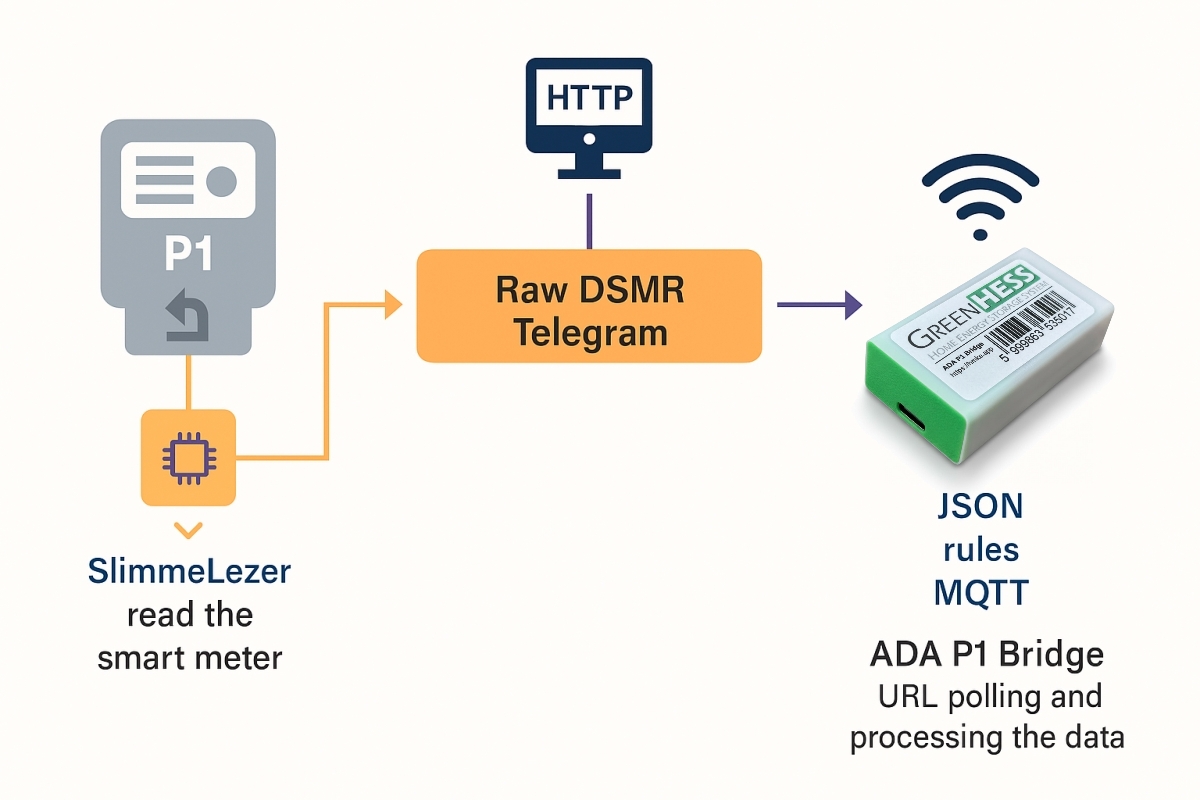
The goal is simple:
-
SlimmeLezer reads from the electricity meter.
-
It serves the raw DSMR telegram over HTTP.
-
ADA Bridge polls this URL and processes it just like it would if it came from its own P1 port (JSON, rules, MQTT).
If you follow these steps, you get a stable "P1-port-less" ADA Bridge that works well even when only a SlimmeLezer fits next to the meter.
1) What do you need?
Hardware / network:
-
A working SlimmeLezer with ESPHome firmware (typically an ESP8266 D1 Mini).
-
An ADA P1 Bridge configured on Wi-Fi.
-
Both devices must be on the same local network (same router / Wi-Fi, no guest network, no separate VLAN).
Software:
-
ESPHome (Home Assistant ESPHome addon or standalone).
-
The SlimmeLezer YAML configuration.
2) Full example SlimmeLezer YAML (copy-paste base)
If you don't have a SlimmeLezer yet, or want to unify the current one, this is a well-tested complete config. Put this into ESPHome as a new device and then adjust it to your own values (PIN, board, sensors).
Important: you will also need a
secrets.yamlfile (shown at the end).
substitutions:
  device_name: slimmelezer
  device_description: "DIY P1 module to read your smart meter"

esphome:
  name: ${device_name}
  comment: "${device_description}"
  name_add_mac_suffix: false
  project:
    name: zuidwijk.slimmelezer
    version: "1.0"
  on_boot:
    then:
      - if:
          condition:
            lambda: return id(has_key);
          then:
            - lambda: |-
                std::string key(id(stored_decryption_key), 32);
                id(dsmr_instance).set_decryption_key(key);
          else:
            - logger.log:
                level: info
                format: "Not using decryption key. If you need to set a key use Home Assistant service 'ESPHome: ${device_name}_set_dsmr_key'"

esp8266:
  board: d1_mini
  restore_from_flash: true

wifi:
  networks:
    - ssid: !secret wifi_ssid
      password: !secret wifi_password
  ap:
    ssid: ${device_name}
    ap_timeout: 15s

captive_portal:

logger:
  baud_rate: 0

api:
  services:
    - service: set_dsmr_key
      variables:
        private_key: string
      then:
        - logger.log:
            format: "Setting private key %s. Set to empty string to disable"
            args: [private_key.c_str()]
        - globals.set:
            id: has_key
            value: !lambda "return private_key.length() == 32;"
        - lambda: |-
            if (private_key.length() == 32)
              private_key.copy(id(stored_decryption_key), 32);
            id(dsmr_instance).set_decryption_key(private_key);

ota:
  - platform: esphome

web_server:
  port: 80
  version: 3

uart:
  id: p1_uart
  baud_rate: 115200
  rx_pin: D7
  rx_buffer_size: 4000

globals:
  - id: has_key
    type: bool
    restore_value: yes
    initial_value: "false"
  - id: stored_decryption_key
    type: char[32]
    restore_value: yes

dsmr:
  id: dsmr_instance
  uart_id: p1_uart
  max_telegram_length: 4000

sensor:
  - platform: dsmr
    energy_delivered_lux:
      name: "Energy Consumed Luxembourg"
      state_class: total_increasing
    energy_delivered_tariff1:
      name: "Energy Consumed Tariff 1"
      state_class: total_increasing
    energy_delivered_tariff2:
      name: "Energy Consumed Tariff 2"
      state_class: total_increasing
    energy_returned_lux:
      name: "Energy Produced Luxembourg"
      state_class: total_increasing
    energy_returned_tariff1:
      name: "Energy Produced Tariff 1"
      state_class: total_increasing
    energy_returned_tariff2:
      name: "Energy Produced Tariff 2"
      state_class: total_increasing
    power_delivered:
      name: "Power Consumed"
      accuracy_decimals: 3
    power_returned:
      name: "Power Produced"
      accuracy_decimals: 3
    electricity_failures:
      name: "Electricity Failures"
      icon: mdi:alert
    electricity_long_failures:
      name: "Long Electricity Failures"
      icon: mdi:alert
    voltage_l1:
      name: "Voltage Phase 1"
    voltage_l2:
      name: "Voltage Phase 2"
    voltage_l3:
      name: "Voltage Phase 3"
    current_l1:
      name: "Current Phase 1"
    current_l2:
      name: "Current Phase 2"
    current_l3:
      name: "Current Phase 3"
    power_delivered_l1:
      name: "Power Consumed Phase 1"
      accuracy_decimals: 3
    power_delivered_l2:
      name: "Power Consumed Phase 2"
      accuracy_decimals: 3
    power_delivered_l3:
      name: "Power Consumed Phase 3"
      accuracy_decimals: 3
    power_returned_l1:
      name: "Power Produced Phase 1"
      accuracy_decimals: 3
    power_returned_l2:
      name: "Power Produced Phase 2"
      accuracy_decimals: 3
    power_returned_l3:
      name: "Power Produced Phase 3"
      accuracy_decimals: 3
    gas_delivered:
      name: "Gas Consumed"
      state_class: total_increasing
    gas_delivered_be:
      name: "Gas Consumed Belgium"
      state_class: total_increasing

  - platform: uptime
    name: "SlimmeLezer Uptime"
  - platform: wifi_signal
    name: "SlimmeLezer Wi‑Fi Signal"
    update_interval: 60s

text_sensor:
  - platform: dsmr
    identification:
      name: "DSMR Identification"
    p1_version:
      name: "DSMR Version"
    p1_version_be:
      name: "DSMR Version Belgium"
    telegram:
      id: telegram_raw
      name: "Raw DSMR Telegram"

  - platform: wifi_info
    ip_address:
      name: "SlimmeLezer IP Address"
    ssid:
      name: "SlimmeLezer Wi‑Fi SSID"
    bssid:
      name: "SlimmeLezer Wi‑Fi BSSID"

  - platform: version
    name: "ESPHome Version"
    hide_timestamp: true
2/A) secrets.yaml
The above config will compile only if a secrets.yaml file is present. At minimum, it must contain:
wifi_ssid: "YOUR_WIFI_NETWORK"
wifi_password: "YOUR_WIFI_PASSWORD"
If your P1 port is encrypted (Belgium, Luxembourg, some Dutch meters), the key is not put here, but you set it via Home Assistant service:
-
ESPHome: slimmelezer_set_dsmr_key -
private_key: "32 character key"
3) Checking the raw telegram endpoint (URL)
After the SlimmeLezer is online, the web server automatically displays the values of the text sensors.
Important compatibility note: The ADA P1 Bridge can consume not only the "plain" textual DSMR telegram but also if the endpoint returns JSON-encoded data with the telegram under a value key (e.g. {"value":"/...!XXXX"}). In this case, the Bridge automatically extracts and processes the contents of the value field. For SlimmeLezer, this is usually plain text, but if some proxy / HA sensor returns JSON, that will not be a problem either.
The URL of the telegram_raw sensor looks like this:
http://<slimmelezer_ip>/text_sensor/raw_dsmr_telegram
Example:
http://192.168.31.149/text_sensor/raw_dsmr_telegram
What should you see? A complete DSMR telegram that:
-
Starts with the
/character -
Contains several OBIS lines (
1-0:1.8.0(...),1-0:32.7.0(...), etc.) -
Ends with a
!XXXXpart (CRC)
If you see this, you can proceed with the Bridge.
4) Switching ADA P1 Bridge to URL telegram mode
The ADA P1 Bridge firmware has a dedicated endpoint for this.
4/A) Save and test the URL at once
POST request to the Bridge:
curl -X POST "http://okosvillanyora.local:8989/tg/test" \
  -H "Content-Type: application/json" \
  -d '{"url":"http://192.168.31.149/text_sensor/raw_dsmr_telegram"}'
Expected responses:
-
{"ok":true,...}→ URL saved, Bridge switched to URL mode. -
{"ok":false,"msg":"..."}→ error found (see troubleshooting below).
The Bridge saves the URL in internal storage (LittleFS), so it starts with this after reboot.
4/B) Checking status
GET http://okosvillanyora.local:8989/tg/status
Here you see among others:
-
using_url: true/false -
url_set: true/false -
url_masked(masked, safely)
5) How does the system work from now on?
-
SlimmeLezer reads the electricity meter over P1.
-
The Bridge fetches the telegram from the specified URL every 10 seconds.
-
The Bridge processes it exactly as if it came directly from a serial P1 port:
-
JSON generation
-
Running rules
-
MQTT publishing
-
Web APIs
-
6) Troubleshooting (if something doesn’t work at first)
1) ADA says: "does not look like a telegram"
-
Open the SlimmeLezer URL in a browser.
-
If you don’t get a complete telegram, you are not calling the
telegram_rawtext_sensor.
2) Encrypted telegram (BE/LU)
-
Provide the DSMR key with the HA service (
set_dsmr_key). -
Without the key, the telegram will be unreadable and ADA will discard it.
3) Partial telegram / sometimes good, sometimes bad
-
Set a large buffer in SlimmeLezer:
uart:
  rx_buffer_size: 4000

dsmr:
  max_telegram_length: 4000
4) IP address changes
-
It is recommended to assign a fixed IP to SlimmeLezer in the router.
-
If it already changed, call
/tg/testagain with the new address.
5) Bridge and SlimmeLezer cannot see each other
-
Do not put them on a guest network.
-
Make sure there is no network separation (VLAN) between them.
-
Try pinging the SlimmeLezer IP from the network