
GreenHESS P1 Monitor
Would you like to see at a glance how much electricity you are drawing from the grid, how much you are feeding back, and what is happening on each phase? GreenHESS P1 Monitor is software for a 4-inch touchscreen that displays ADA P1 Meter data over your local network.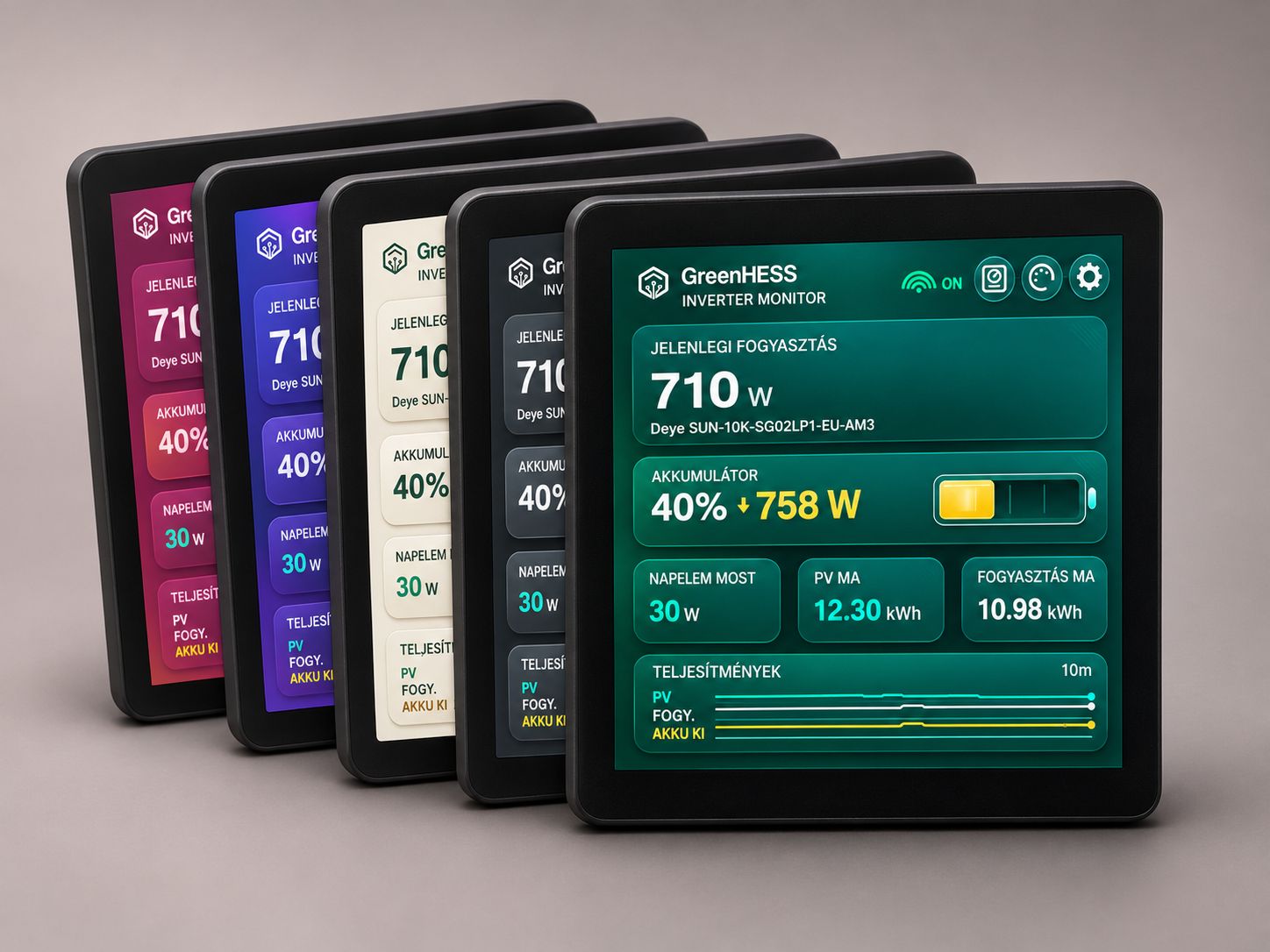
Important: this display works only with the ADA P1 Meter. It does not connect directly to the electricity meter’s P1 port, and it does not measure electricity on its own. The ADA P1 Meter reads the meter; GreenHESS P1 Monitor displays the data it provides.
What can you see on the display?
- Meter screen: live grid import and export, net grid power, data for all three phases, and a chart covering the last 10 minutes. The key figures fit on a single screen without scrolling.
- Inverter screen: solar production, current consumption, battery state of charge, charging or discharging direction and power, daily totals, and a chart. This screen requires inverter data to be available in the ADA P1 Meter’s JSON response.
- Personalization: six color themes, adjustable brightness, and Hungarian or English. Your selected theme, brightness, and starting screen are retained after a restart.
- Local connection: the display retrieves ADA P1 Meter data over Wi-Fi on your local network.
What hardware do you need?
The software is designed for the Guition ESP32-S3-4848S040C_I touchscreen panel with a 480 × 480 display. Check the full model number before buying: this firmware may not work on other panels that look similar.
We bought the unit shown here from this AliExpress listing. It is worth comparing other offers, as prices and availability may change. GreenHESS does not currently sell the display hardware; we make the software available as a companion to the ADA P1 Meter.
For installation, you will also need a USB-C cable that supports data transfer, a computer, and a desktop browser that supports Web Serial, such as Chrome or Edge. For everyday use, you need a 2.4 GHz Wi-Fi network and a working ADA P1 Meter reachable on the same local network.
Install the firmware
The web installer lets you flash the software directly from your browser. The panel’s USB-C connector is used for installation and power; do not connect it to the electricity meter’s P1 port.
GreenHESS P1 Monitor – web installer
Connect the display with a USB-C data cable, then start the installation. When prompted by your browser, select the panel’s serial port.
Installation replaces the program previously stored on the display. Use this firmware only with the Guition ESP32-S3-4848S040C_I panel.
- Connect the Guition panel to your computer with a USB-C cable that supports data transfer.
- Close any programs that may be using the serial port, such as the PlatformIO Serial Monitor.
- Start the web installer and select the display’s USB serial port in your browser.
- Follow the on-screen steps and do not disconnect the cable until installation is complete. Flashing the firmware overwrites the panel’s previous program; existing settings may also be erased during a first installation.
- Wait for the GreenHESS splash screen. If no network has been configured yet, the display opens the settings screen automatically.
First-time setup, step by step
- Wi-Fi: tap SCAN, choose your network, and enter its password. Tap SHOW if you want to check the characters you entered.
- ADA P1 Meter address: the default hostname is
okosvillanyora.local, and the default port is8989. Enter only the hostname or IP address; the software addshttp://and/jsonautomatically. - Language and save: choose English or Hungarian, then tap SAVE.
- Appearance: tap the palette icon to choose from six color themes and adjust the brightness. The solar icon opens the inverter screen; the meter icon takes you back to the meter screen.
If okosvillanyora.local does not resolve on your network, enter the ADA P1 Meter’s local IP address instead. You can change these settings later with the gear icon.
Frequently asked questions
Can I use it without an ADA P1 Meter?
No. GreenHESS P1 Monitor reads the ADA P1 Meter’s local /json endpoint. It cannot receive P1 data directly from the electricity meter through the display’s USB-C port.
Why is inverter data missing?
The inverter screen can show data only when the ADA P1 Meter’s JSON response contains the corresponding inverter readings. You can still use the meter screen without them.
Why can’t my browser detect the display?
Check the USB-C cable and the computer’s USB port. Use a desktop browser that supports Web Serial, and close any other program using the serial port. The web installer requires a secure HTTPS connection.
How do I clear the network settings?
On the settings screen, tap FACTORY RESET twice to erase the saved Wi-Fi and meter connection details and restart the display. Tap RESTART to reboot without deleting your settings.